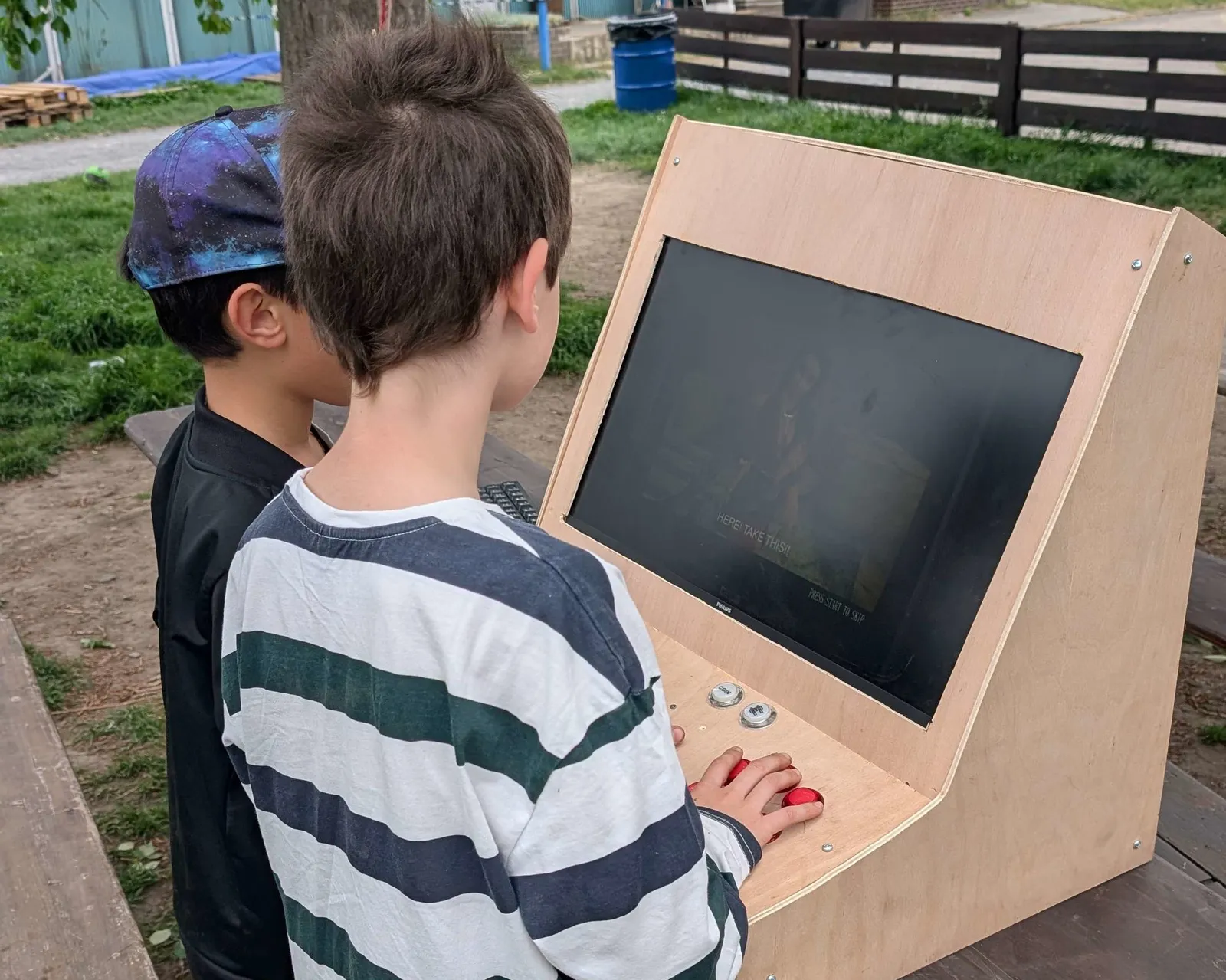
Retro Gaming
Initial system setup
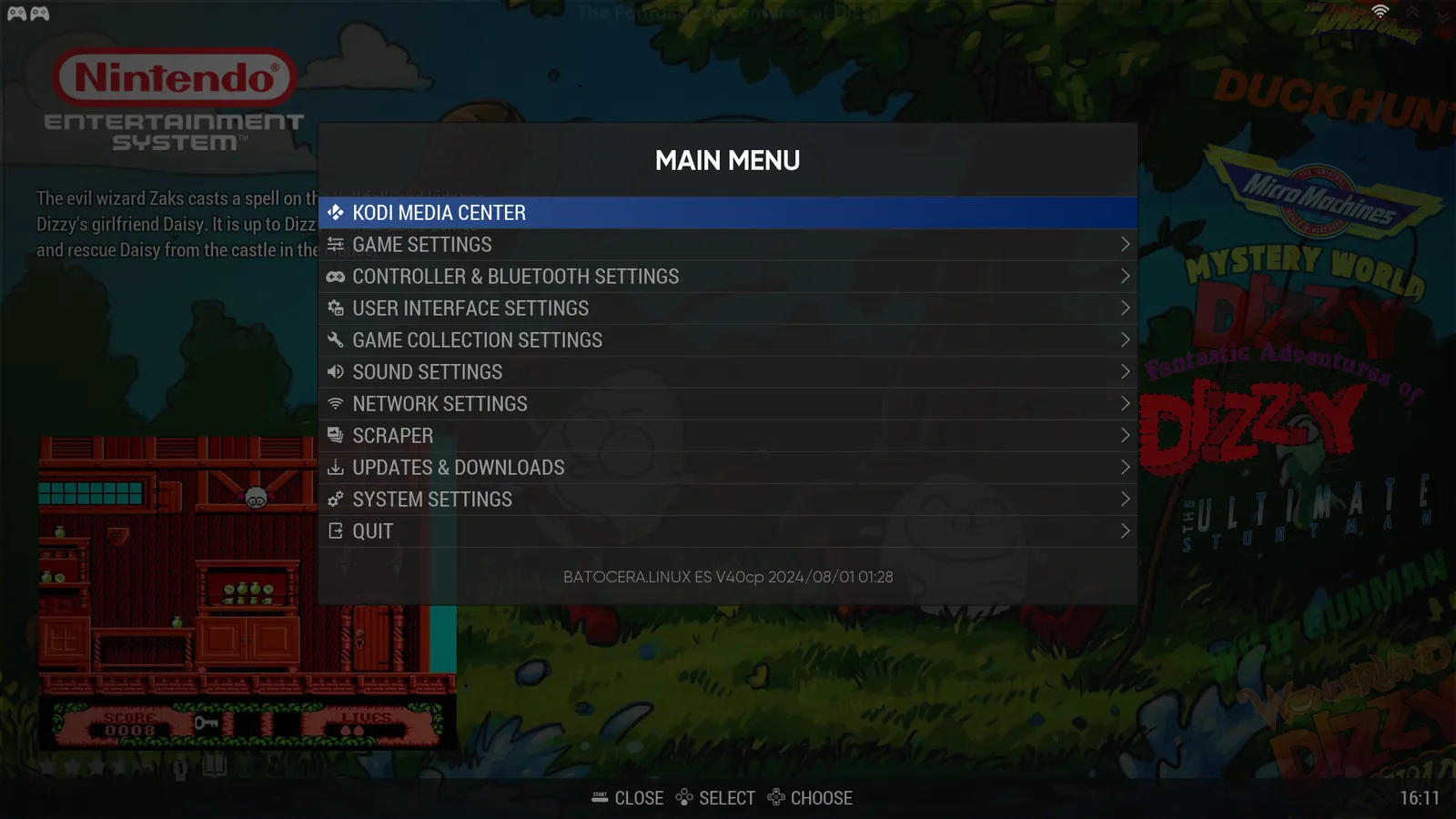
When you first boot into Batocera, the main menu is your control centre. Press Start on your controller (or Space on your keyboard) to open it. From here you can adjust everything — game settings, controller mappings, display options, sound, and more.
Don't worry about getting everything perfect on the first run; you can always come back to this menu and tweak things later.
A good first step is to set your language and time zone under System Settings.
Network config
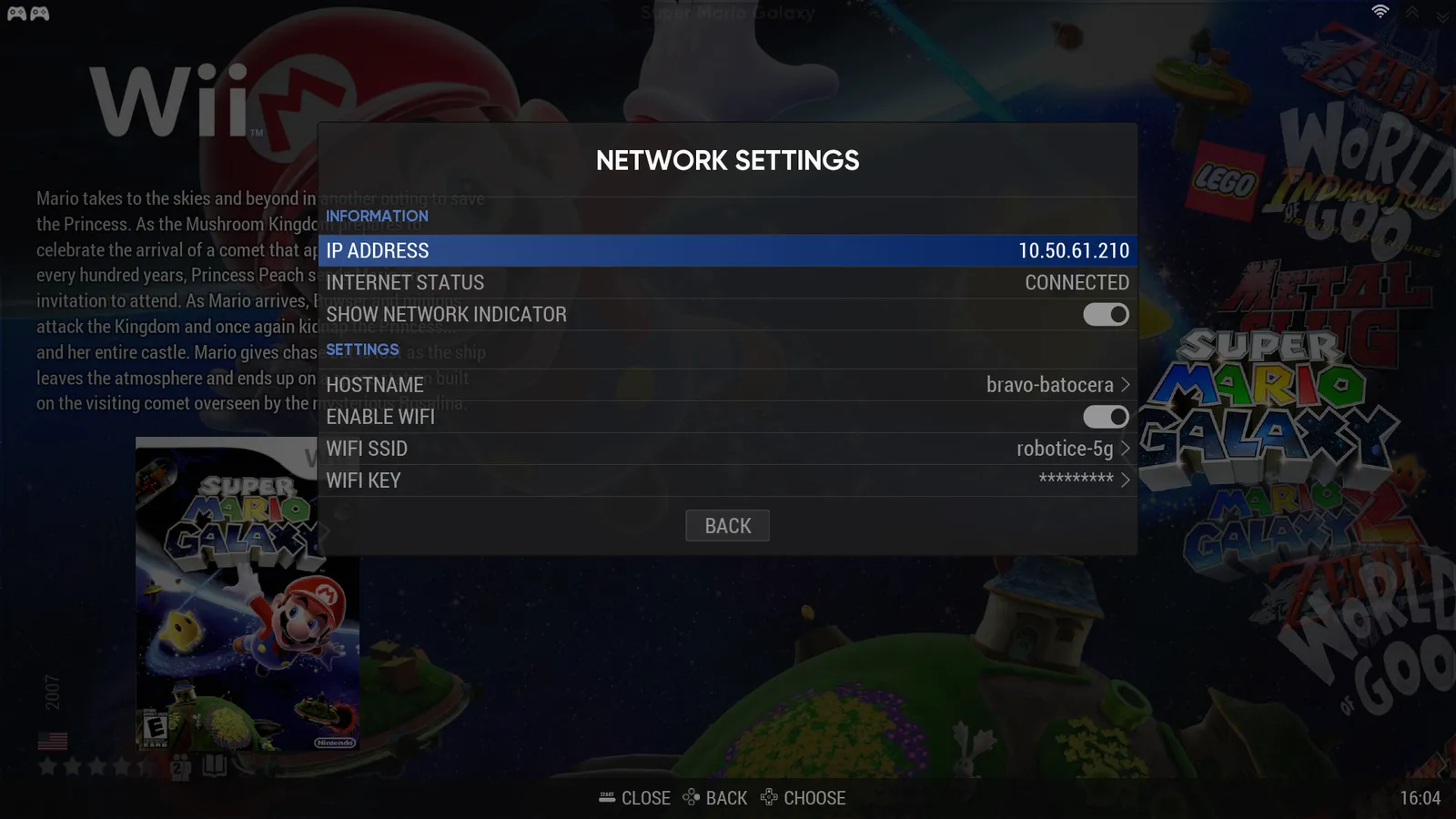
Getting online unlocks Batocera's best features: automatic game artwork downloads, system updates, and remote access. Head to Main Menu → Network Settings.
If you're using a cable, Batocera usually connects automatically. For Wi-Fi, select Enable WiFi, then enter your WiFi SSID (your network name) and WiFi Key (your password).
Once connected, you'll see your IP address appear at the top of the list — that's confirmation you're online.
Install games
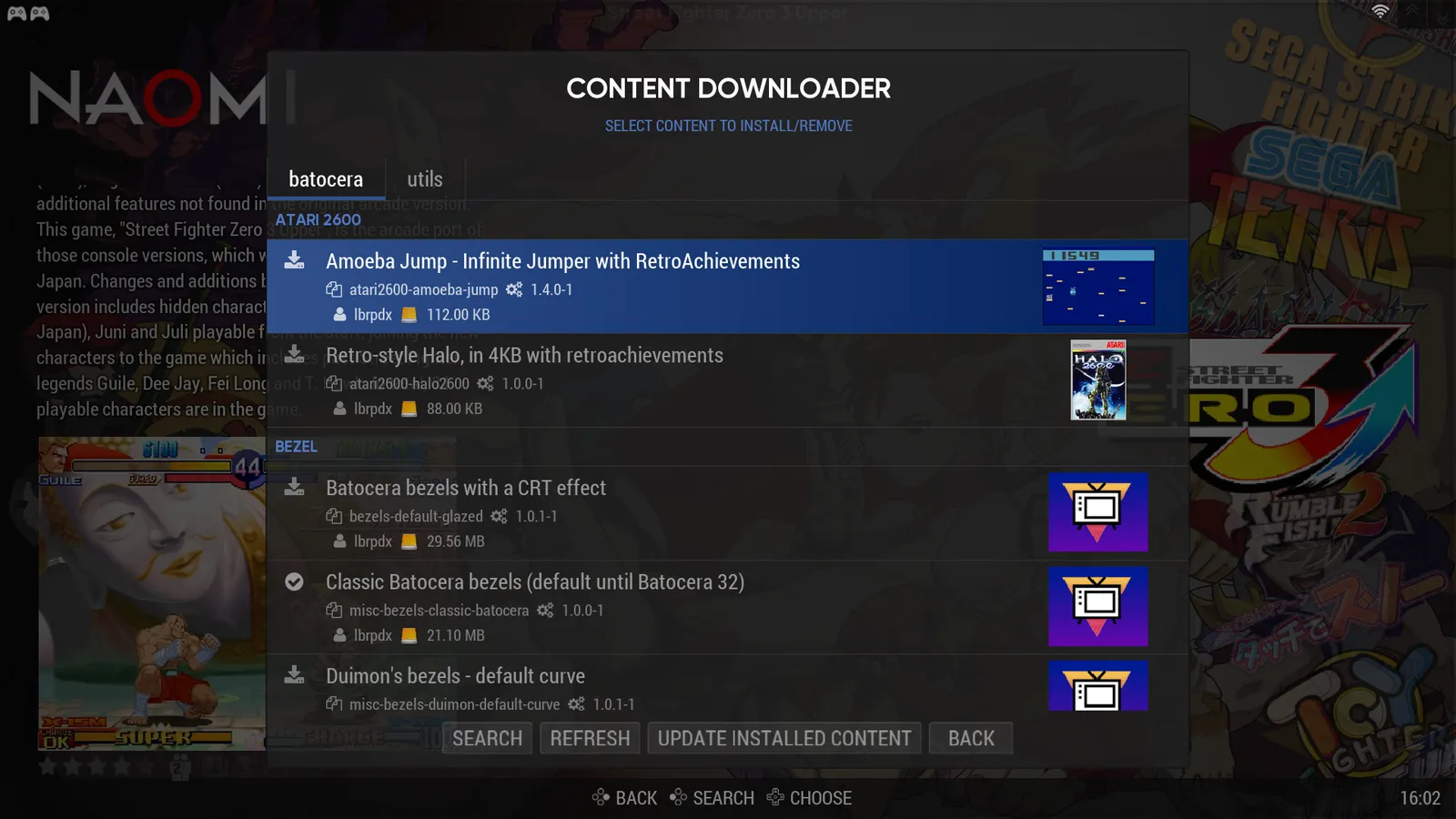
Go to Settings, Updates and Downloads section to install new games.
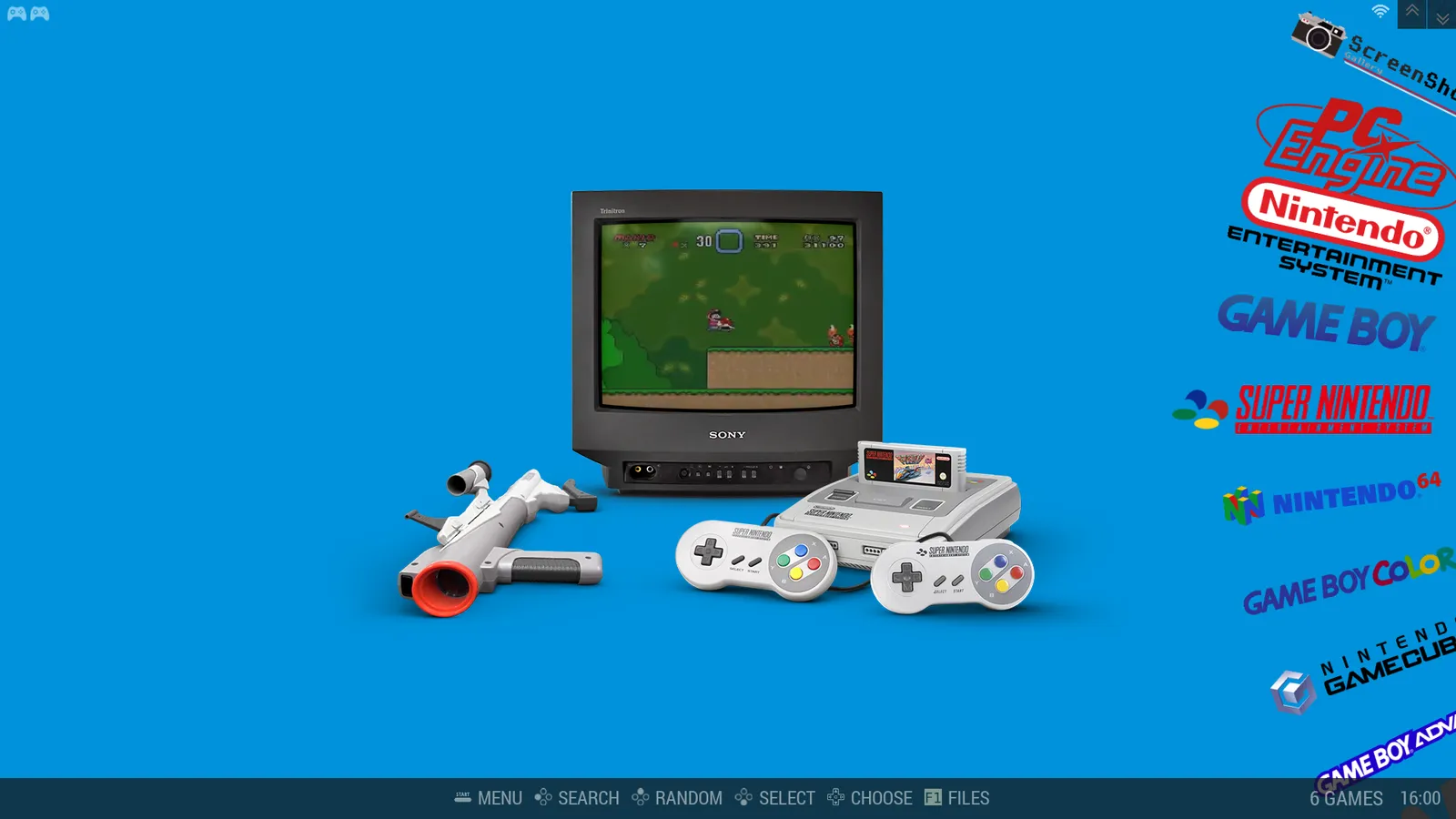
The platform selection screen is your gateway to decades of gaming history. Batocera supports a huge range of systems — from the original Nintendo Entertainment System and Game Boy all the way through to Super Nintendo, Nintendo 64, GameCube, PC Engine, and many more.
Each platform shows how many games you have installed. Simply scroll through the list, pick the console you want to play, and press Choose to dive into its game library. If you're not sure where to start, try a platform you remember from childhood — it's all just one button press away.
Select gaming platform
The platform selection screen is your gateway to decades of gaming history. Batocera supports a huge range of systems — from the original Nintendo Entertainment System and Game Boy all the way through to Super Nintendo, Nintendo 64, GameCube, PC Engine, and many more. Each platform shows how many games you have installed.
Simply scroll through the list, pick the console you want to play, and press Choose to dive into its game library. If you're not sure where to start, try a platform you remember from childhood — it's all just one button press away.
Browse available platforms and select what suits you best.
View platform information
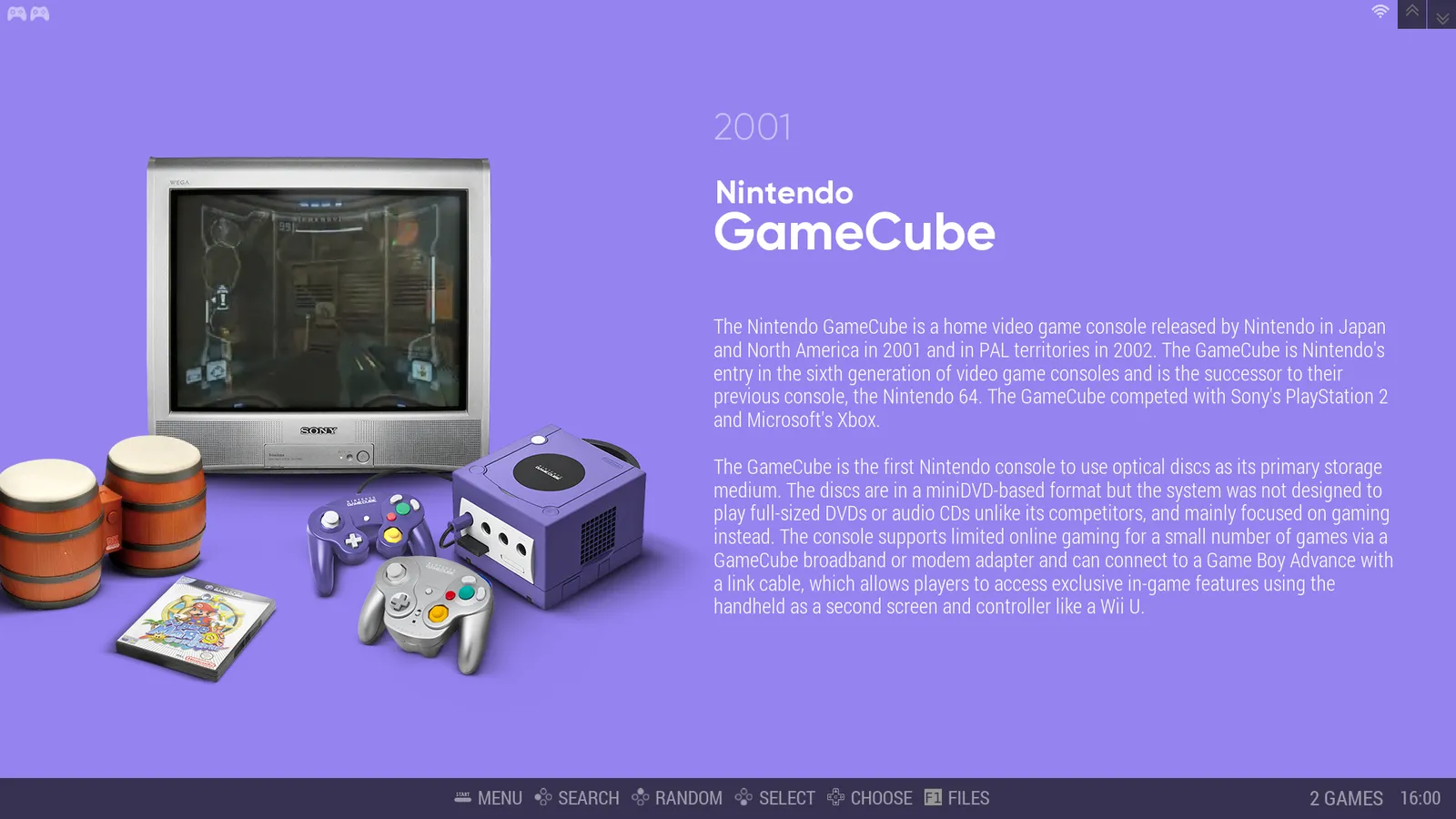
Batocera organises games by their original platform — NES, GameCube, Arcade, and dozens more. When you highlight a system in the menu, you'll see a short history of that console along with the number of games you have for it. It's a great way to rediscover systems you might have forgotten about.
Use the left/right directions to browse platforms and press Select to jump straight into the game list.
Select game to play
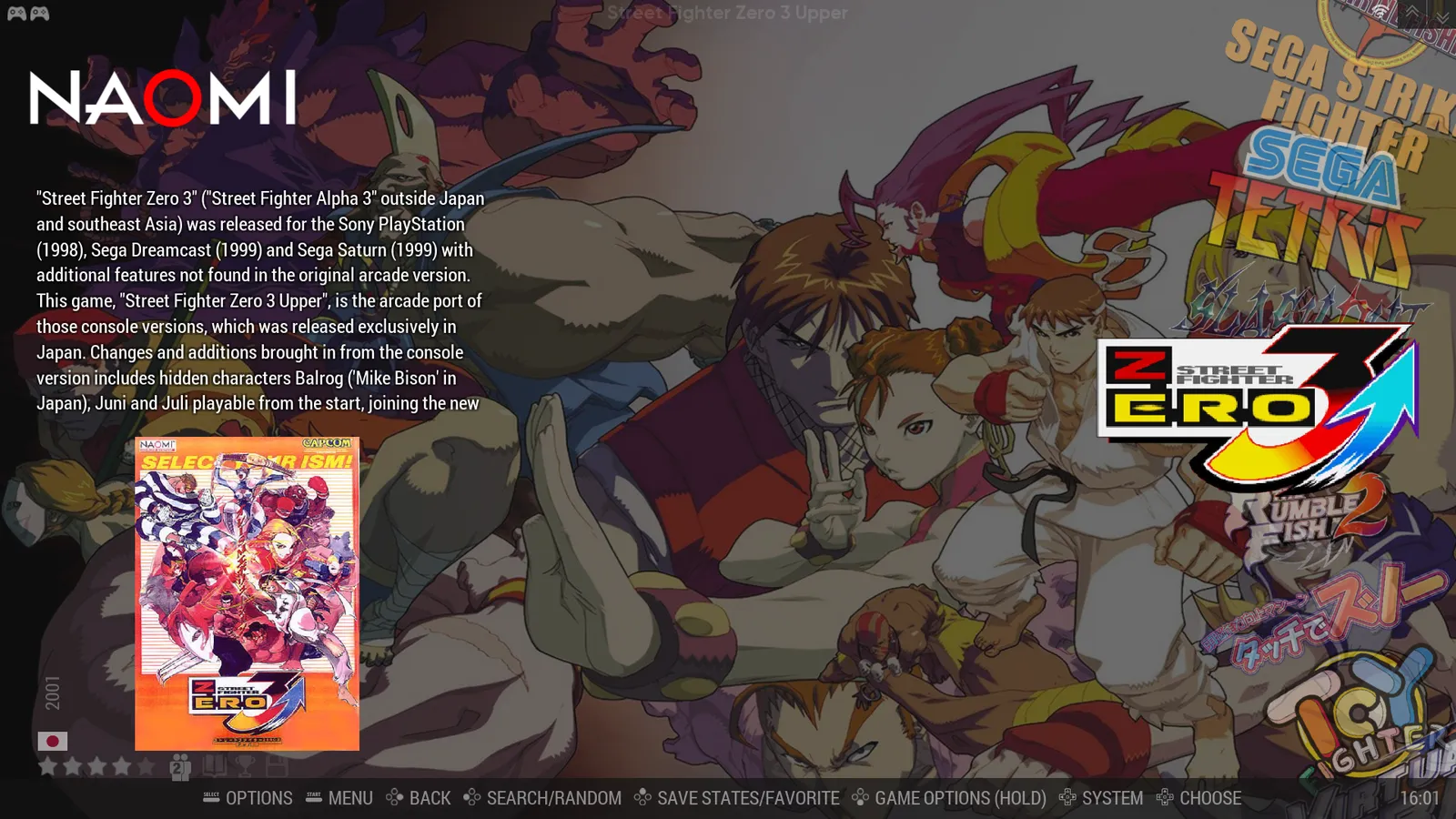
Once inside a platform, scroll through your game list and highlight any title to see its cover art, description, and rating on the right. Use Search to find a specific game quickly, or hit Random if you're feeling adventurous.
Press Choose (usually the A/East button) to launch the game. The emulator starts automatically — no extra configuration needed for most titles.
Let the game begin
That's all there is to it! Once a game loads, you're in — just play.
Batocera runs quietly in the background, handling all the technical work so you can focus on having fun. If you ever need to save your progress mid-game, pause and press the dedicated Save States button combination shown at the bottom of the screen.
When you're done, hold the Menu button to exit back to the game list and choose your next adventure.